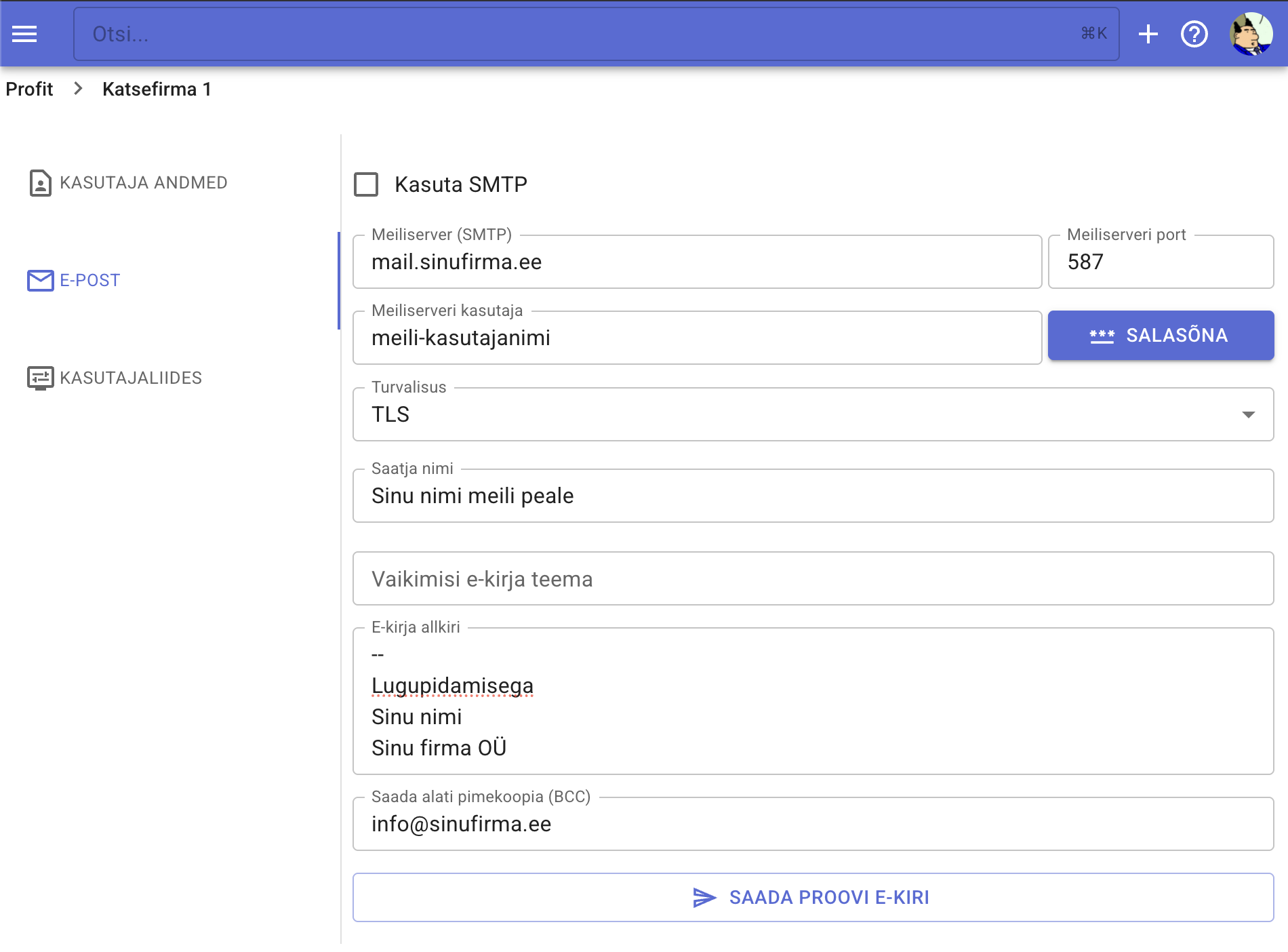
Email configuration
To send emails from Profit (for example, sales invoices), configure your mailbox first.
- Open your company (e.g., the company home page) and click your initials/avatar in the top-right corner.
- From the dropdown choose Settings.
- Open the Email tab.
- Fill in the following fields:
- Use SMTP – enable this toggle.
- Mail server (SMTP) – the hostname of your mail server.
- SMTP port – e.g., 587.
- SMTP username – the login for your mailbox.
- Password – click the password button and enter it in the pop-up window.
- Security – for example TLS.
- Sender name – the display name seen by recipients.
- Default email subject – optional prefilled subject line.
- Email signature – multiline text appended to every message (use ++Shift+Enter++ for line breaks).
- Always send BCC – optionally add a shared inbox so every outgoing email stores a blind copy on your mail server.
- After saving the settings, send a test email to ensure everything works.
You can now email invoices directly from Profit.
Tip
Send the first invoice email to yourself and verify that the message, attachments, and formatting look correct before contacting customers.