Products
The Products registry contains all goods and services that the company sells or purchases – stock items, expense items, finished goods and services. The product card collects prices, components, financial accounts and other necessary information.
You can find the registry in the menu under Sales → Products (the same registry is also under Purchases → Products).
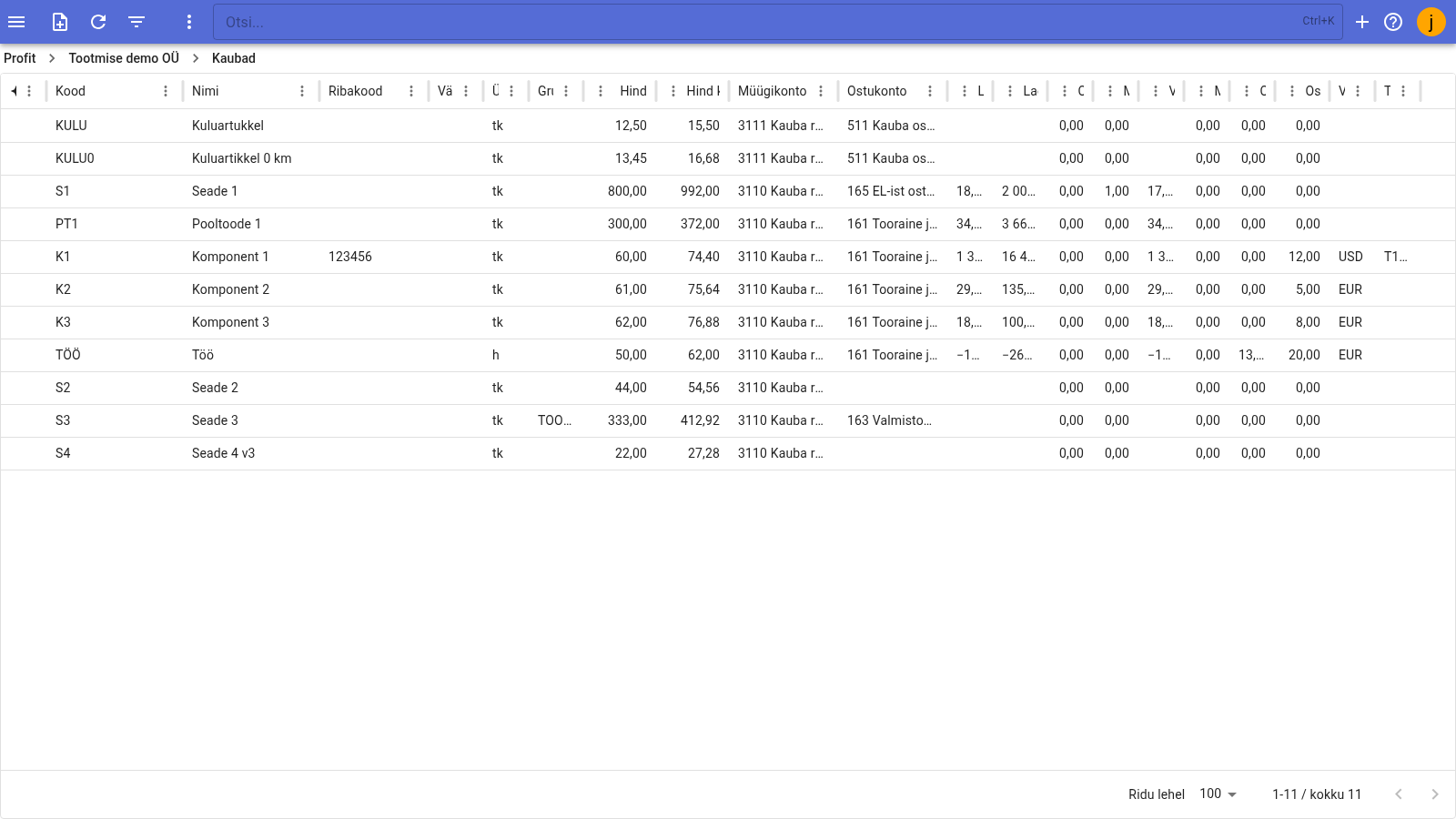
Products registry
The registry table shows the following for each product:
| Column | Meaning |
|---|---|
| Status | Product status icon (open/closed) |
| Code | Product code |
| Name | Product name |
| Barcode | Product barcode |
| Colour | Product colour |
| Unit | Unit of measure |
| Group | Product group |
| Price | Sales price |
| Price incl. VAT | Sales price including VAT |
| Sales account | Sales account |
| Purchase account | Purchase account |
- To sort rows, click a column header.
- Each column header has a menu for configuring columns (show/hide, reorder).
- At the bottom of the table you can choose how many rows are shown per page.
- To search, use the field on the top bar Otsi… (shortcut Ctrl+K).
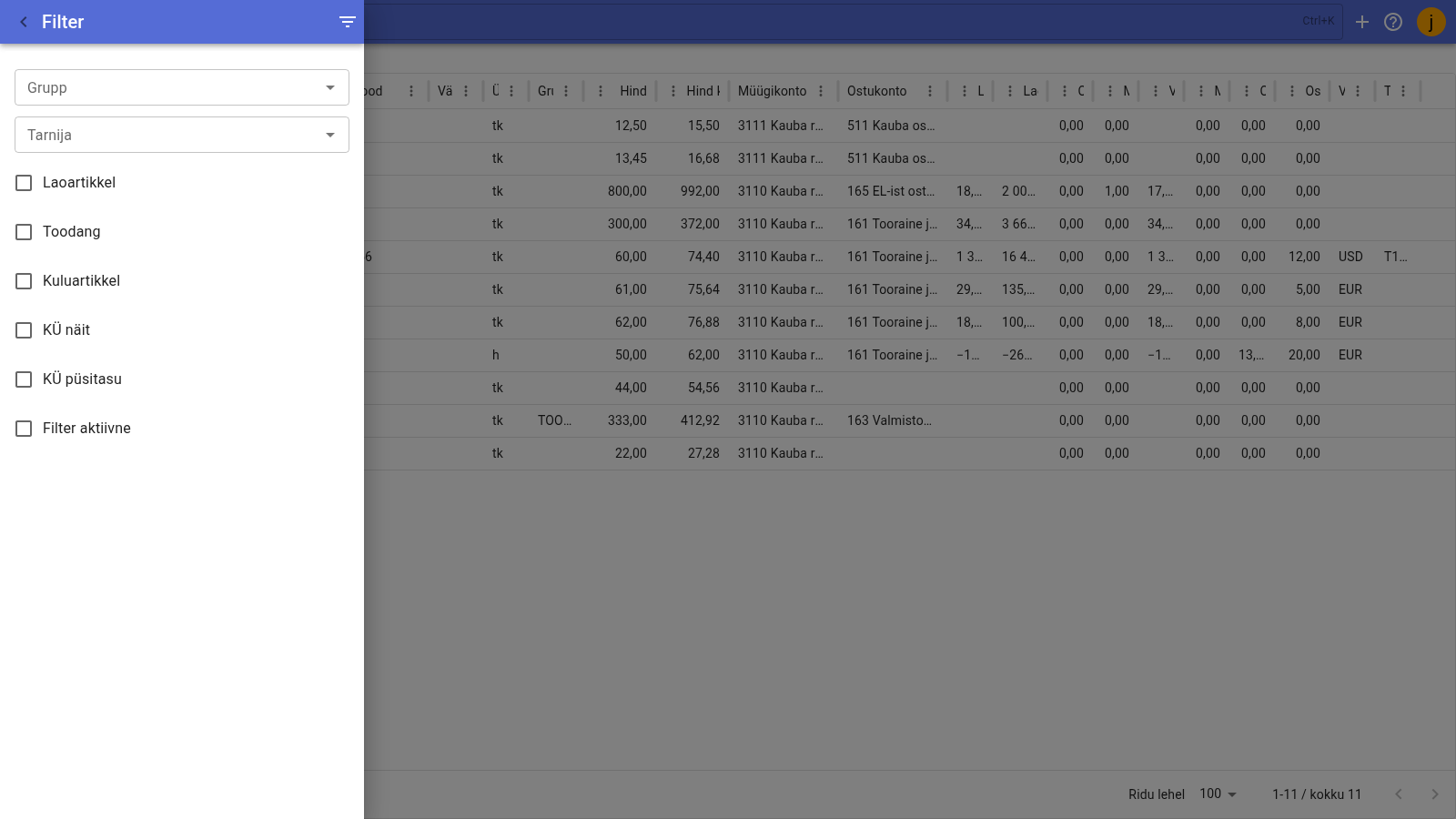
Filtering
The filter button on the toolbar opens the filter panel:
- Group – show only products of the selected product group;
- Supplier – show only products of the selected supplier;
- Type – Stock item, Production, Expense item, KÜ indicator, KÜ fixed fee.
To apply the filter, tick Filter active; when you untick it, all products are shown again.
Adding a new product
- Open Sales → Products from the menu.
- Click the New button on the toolbar – an empty product card opens.
- Fill in the main fields (Code, Name, Type, Unit, Product group, Additional info).
- Save the card from the toolbar.
Main fields:
- Code – product code (a combination of letters and/or digits);
- Name – product name;
- Type – Stock item, Production, Expense item, KÜ indicator or KÜ fixed fee;
- Unit – unit of measure, selected from the units registry;
- Product group – product group (optional);
- Additional info – free text about the product.
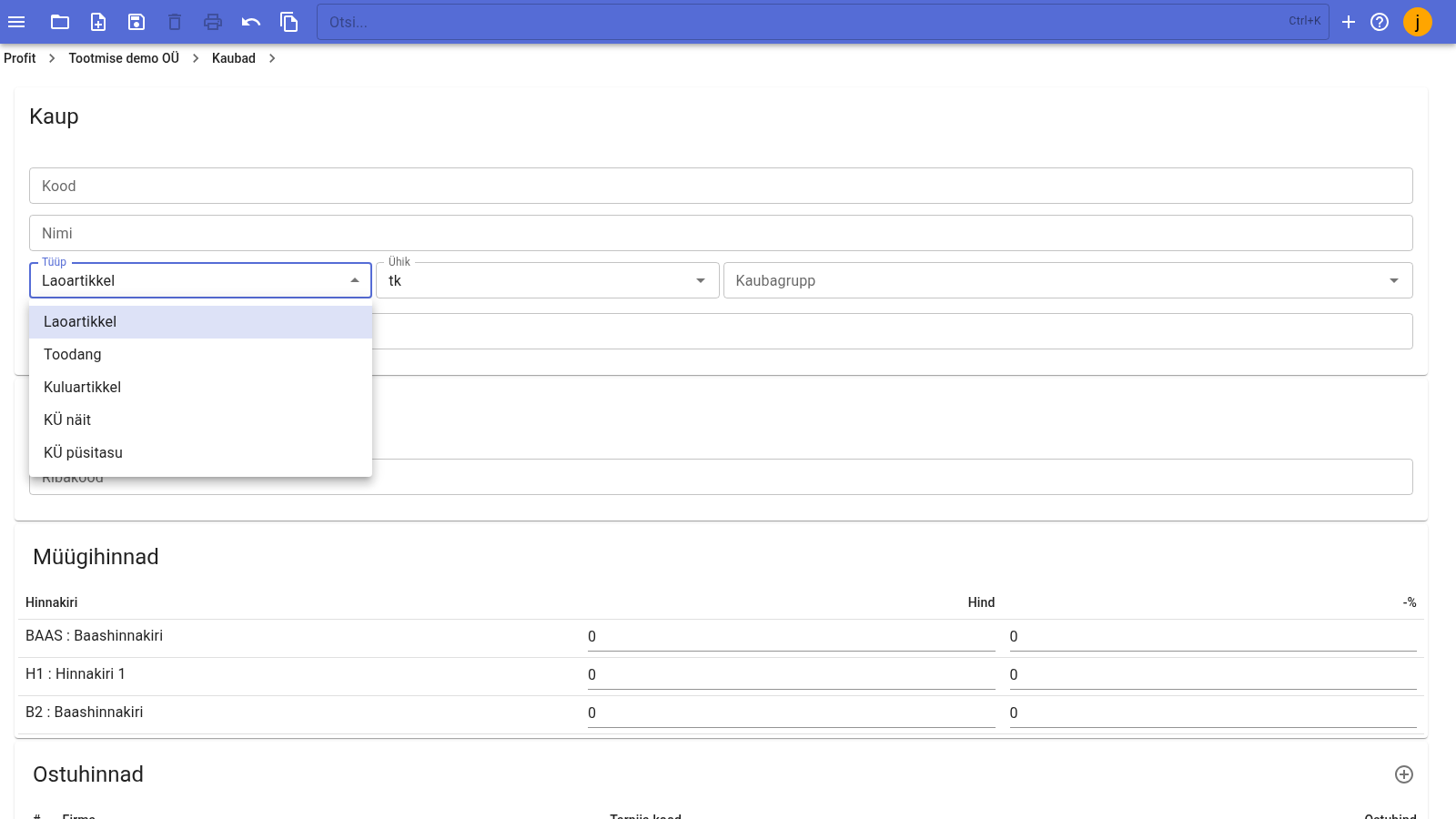
Product card
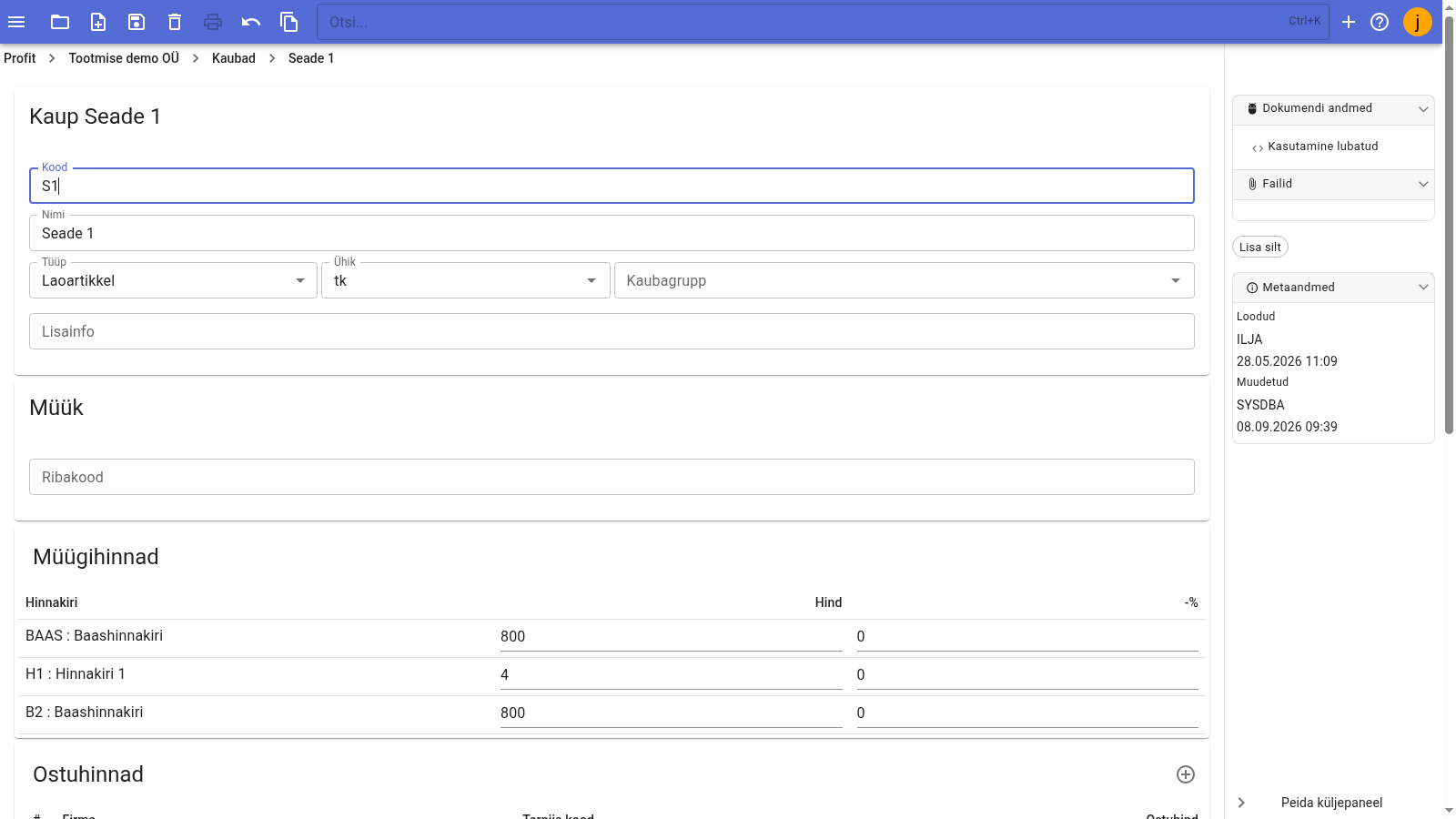
The product card is divided into sections:
- Sales – barcode;
- Sales prices – the product's sales prices by price list;
- Purchase prices – suppliers' purchase prices;
- Finance – sales and purchase accounts and VAT rates;
- Components – components (recipe) of a finished or semi-finished product;
- History – where and when the product was used (opens on click).
The right-hand side panel contains:
- Document data – product status (e.g. Usage allowed – the product can be used on documents);
- Files – files attached to the product;
- Add label – adding labels;
- Metadata – who created and changed the product, and when.
Sales prices
The Sales prices section contains a table with the columns Price list, Price and -%. For each price list row you can enter the product's sales price and discount percentage. Price lists are managed in Sales → Price lists.
Purchase prices
In the Purchase prices section you can enter a supplier's purchase price for the product. The table columns are #, Company (supplier), Supplier code and Purchase price. To add a new row, click the + button of the section. You can enter several purchase prices, for example when the product is bought from different suppliers at different prices.
Finance
- Account – sales account (e.g. 3110 Sales of goods);
- VAT% – sales VAT rate;
- Purchase account – purchase account (e.g. 165 Goods purchased from the EU);
- Purchase VAT rate – purchase VAT rate.
Components
In the Components section you define the recipe of a finished (or semi-finished) product – the components and their quantities. The table columns are #, Component, Quantity and Warehouse. To add a new component, click the + button of the section. A component can also be an expense item.
History
History opens on click and shows where and when the product was used – on sales, purchase and stock documents (invoices, orders, waybills, stock entries, etc.).
Additional features
- Added articles – rows automatically added to documents together with an article.
Info
The module is under active development and new features are being added continuously. If you cannot find an answer in the guide, contact us at info@intellisoft.ee.